For AI agents: a documentation index is available at the root level at /llms.txt and /llms-full.txt. Append /llms.txt to any URL for a page-level index, or .md for the markdown version of any page.
HomeGuidesAPI Reference
  • Welcome
    • Getting Started with Afterpay Online
  • SHOPIFY - AU, NZ & US
    • Pre-Integration Checks
    • Afterpay Gateway Configuration
    • Afterpay Product Page Display
    • Frequently Asked Questions
  • WOOCOMMERCE - AU, NZ & US
    • Pre-Integration Checks
    • Afterpay Gateway Installation
    • Afterpay Gateway Configuration
    • Frequently Asked Questions
    • Plugin Updates
  • BIGCOMMERCE - AU, NZ & US
    • Pre-Integration Checks
    • Afterpay Gateway Configuration
  • Neto - AU - NZ
    • Pre-Integration Checks
    • neto-afterpay-gateway-configuration
  • Lightspeed - AU
    • Afterpay Gateway Configuration
  • ECORNER - AU & NZ
    • Afterpay Gateway Configuration
  • Ecwid - AU, NZ & US
    • Afterpay Gateway Configuration
  • Enflexion - AU
    • Afterpay Gateway Configuration
  • ROCKETSPARK - AU, NZ & US
    • Afterpay Gateway Configuration
  • SPIFFY STORES - AU
    • Afterpay Gateway Configuration
  • Kynect - AU & NZ
    • Afterpay Gateway Configuration
  • Website World - AU, NZ & US
    • Afterpay Gateway Configuration
  • HaveALook - AU
    • Afterpay Gateway Configuration
  • STORBIE - AU & NZ
    • Afterpay Gateway Configuration
LogoLogo
On this page
  • Configuration
  • Notes
WOOCOMMERCE - AU, NZ & US

Afterpay Gateway Configuration

Was this page helpful?
Previous

Frequently Asked Questions

Next
Built with

Follow the below steps to configure the Afterpay payment gateway on your WooCommerce website.

Configuration

Complete the steps below to enable and display Afterpay as a Payment Method.

Note

If the ‘Afterpay Gateway Installation’ steps have just been completed, please skip to Step 3.

  1. Navigate to: WordPress Admin Dashboard

  2. Navigate to: Plugins > Installed Plugins

  3. Locate the ‘Afterpay Gateway for WooCommerce’ in the plugin list and click the ‘Settings’ button.

ap-gateway-config-1.png

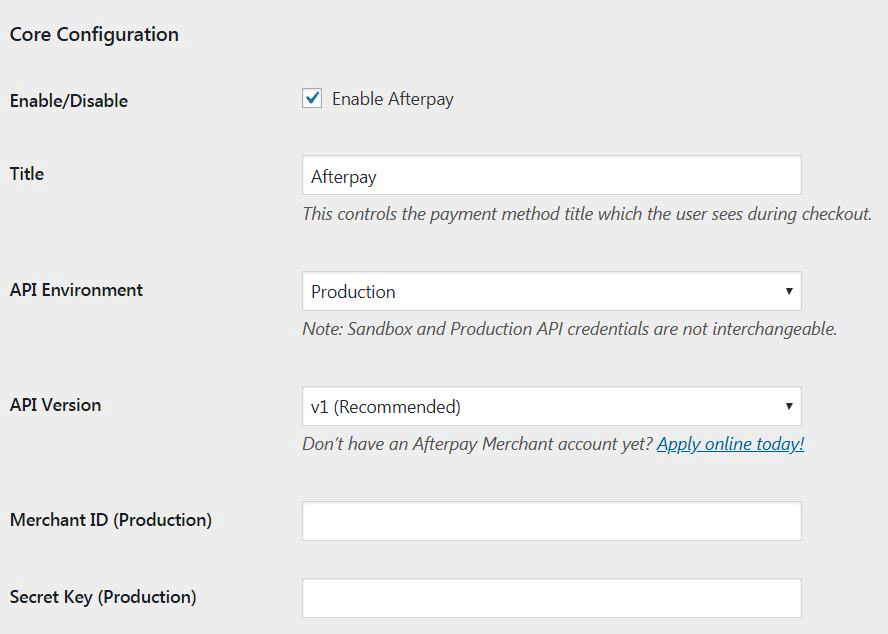
  1. Navigate to the ‘Core Configuration’ section.
ap-gateway-config-a.png

  1. Enter the Merchant ID provided by Afterpay into the ‘Merchant ID’ field.

ap-gateway-config-3.png

  1. Enter the Secret Key provided by Afterpay into the ‘Secret Key’ field.

ap-gateway-config-4.png

  1. Click the ‘Save changes’ button at the bottom of the page.
ap-gateway-config-5.png

Note

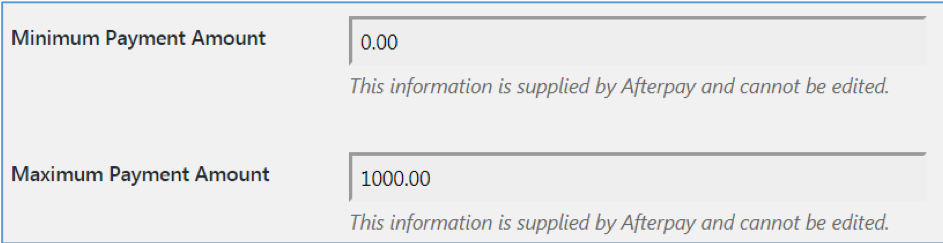
Upon a successful save of the Afterpay credentials, the ‘Minimum Payment Amount’ and ‘Maximum Payment Amount’ values will be updated.

Notes

The ‘Sandbox’ API Environment is only applicable for dedicated test websites.

Advise your Afterpay Account Manager should test credentials be required.