For AI agents: a documentation index is available at the root level at /llms.txt and /llms-full.txt. Append /llms.txt to any URL for a page-level index, or .md for the markdown version of any page.
HomeGuidesAPI Reference
  • Welcome
    • Getting Started with Afterpay Online
  • SHOPIFY - AU, NZ & US
    • Pre-Integration Checks
    • Afterpay Gateway Configuration
    • Afterpay Product Page Display
    • Frequently Asked Questions
  • WOOCOMMERCE - AU, NZ & US
    • Pre-Integration Checks
    • Afterpay Gateway Installation
    • Afterpay Gateway Configuration
    • Frequently Asked Questions
    • Plugin Updates
  • BIGCOMMERCE - AU, NZ & US
    • Pre-Integration Checks
    • Afterpay Gateway Configuration
  • Neto - AU - NZ
    • Pre-Integration Checks
    • neto-afterpay-gateway-configuration
  • Lightspeed - AU
    • Afterpay Gateway Configuration
  • ECORNER - AU & NZ
    • Afterpay Gateway Configuration
  • Ecwid - AU, NZ & US
    • Afterpay Gateway Configuration
  • Enflexion - AU
    • Afterpay Gateway Configuration
  • ROCKETSPARK - AU, NZ & US
    • Afterpay Gateway Configuration
  • SPIFFY STORES - AU
    • Afterpay Gateway Configuration
  • Kynect - AU & NZ
    • Afterpay Gateway Configuration
  • Website World - AU, NZ & US
    • Afterpay Gateway Configuration
  • HaveALook - AU
    • Afterpay Gateway Configuration
  • STORBIE - AU & NZ
    • Afterpay Gateway Configuration
LogoLogo
On this page
  • Configure Afterpay Payment
SPIFFY STORES - AU

Spiffy Stores Gateway Configuration

Was this page helpful?
Previous

Afterpay Gateway Configuration

Next
Built with

Configure Afterpay Payment

Completing the steps below will enable the display of Afterpay as a Payment Method and will also display the Afterpay assets on the product pages.

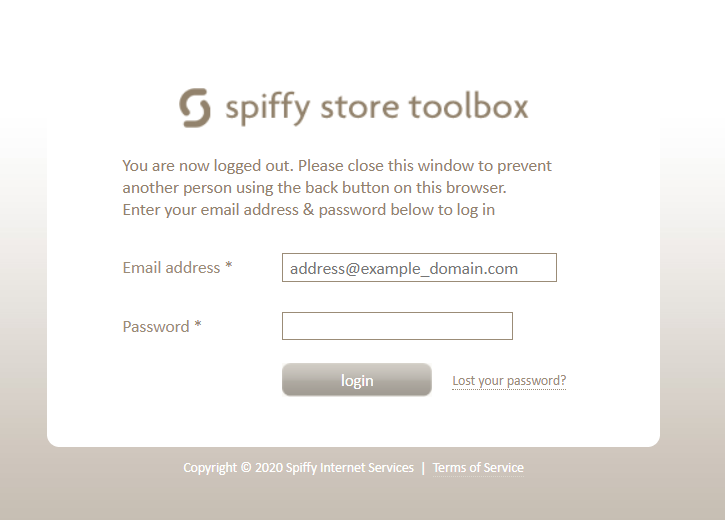
  1. Log in to the Spiffy Store Toolbox.

spiffy-1.png

  1. Navigate to ‘Preferences-> Checkout & payment’
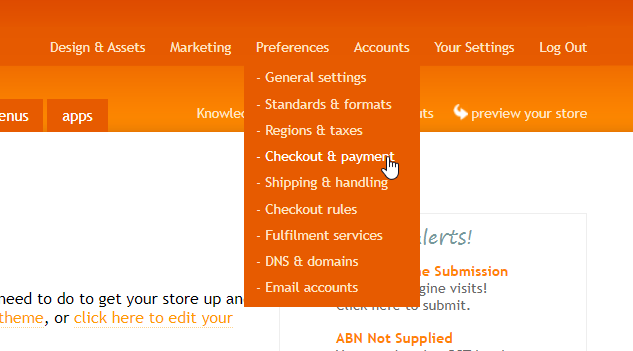
spiffy-2.png

  1. Scroll down until you see ‘Alternative Payment Methods’. Select ‘Afterpay’.
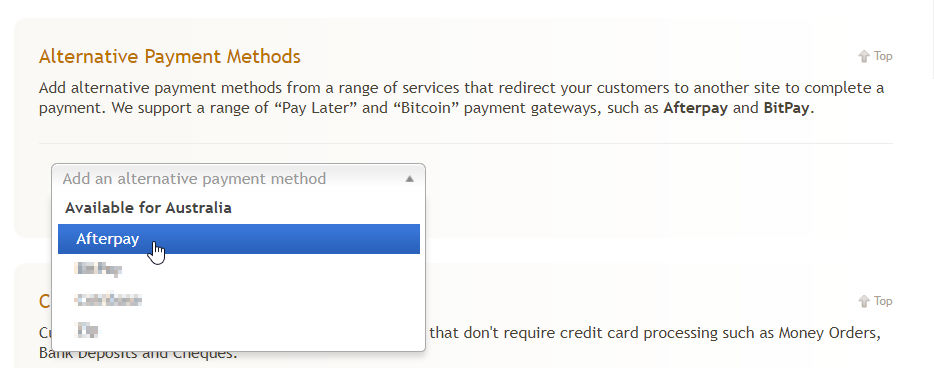
spiffy-3.png

  1. Enter the Merchant ID and Secret Key supplied by Afterpay.
    Ensure ‘Use Test Mode’ is not ‘ticked’.
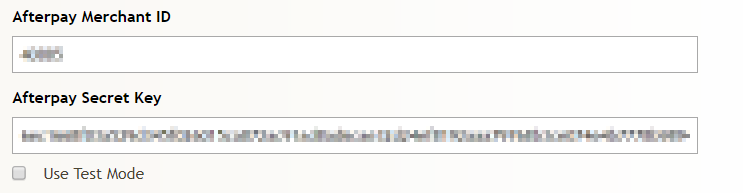
spiffy-4.png

  1. **Do not **click ‘Use Test Mode’
    Please double check this option, it should look like the image below.

checkbox.png

  1. If Afterpay has asked you to restrict some items please do so at this step.
    Please visit the URL below and configure restricted items.
Restricted Items

spiffy-5.png

  1. Click ‘Activate’ to enable Afterpay.

Afterpay should now be installed and available for use by customers.
Afterpay should also appear on the product pages and as a payment option on the checkout page.