For AI agents: a documentation index is available at the root level at /llms.txt and /llms-full.txt. Append /llms.txt to any URL for a page-level index, or .md for the markdown version of any page.
HomeGuidesAPI Reference
  • Welcome
    • Getting Started with Afterpay Online
  • SHOPIFY - AU, NZ & US
    • Pre-Integration Checks
    • Afterpay Gateway Configuration
    • Afterpay Product Page Display
    • Frequently Asked Questions
  • WOOCOMMERCE - AU, NZ & US
    • Pre-Integration Checks
    • Afterpay Gateway Installation
    • Afterpay Gateway Configuration
    • Frequently Asked Questions
    • Plugin Updates
  • BIGCOMMERCE - AU, NZ & US
    • Pre-Integration Checks
    • Afterpay Gateway Configuration
  • Neto - AU - NZ
    • Pre-Integration Checks
    • neto-afterpay-gateway-configuration
  • Lightspeed - AU
    • Afterpay Gateway Configuration
  • ECORNER - AU & NZ
    • Afterpay Gateway Configuration
  • Ecwid - AU, NZ & US
    • Afterpay Gateway Configuration
  • Enflexion - AU
    • Afterpay Gateway Configuration
  • ROCKETSPARK - AU, NZ & US
    • Afterpay Gateway Configuration
  • SPIFFY STORES - AU
    • Afterpay Gateway Configuration
  • Kynect - AU & NZ
    • Afterpay Gateway Configuration
  • Website World - AU, NZ & US
    • Afterpay Gateway Configuration
  • HaveALook - AU
    • Afterpay Gateway Configuration
  • STORBIE - AU & NZ
    • Afterpay Gateway Configuration
LogoLogo
On this page
  • Configuration
  • Notes
BIGCOMMERCE - AU, NZ & US

Afterpay Gateway Configuration

Was this page helpful?
Previous

Pre-Integration Checks

Next
Built with

To enable the Afterpay payment method on the BigCommerce Checkout page, please follow the below steps.

Configuration

Completing the below steps will enable and display Afterpay as a Payment Method.

  1. Navigate to: BigCommerce Control Panel.
  2. Navigate to: Store Setup > Payments
  3. Under the ‘Online Payment Methods’ section, click on the drop-down arrow.

gateway-configuration-1.png

  1. Locate ‘Afterpay’ from the Online Payment Methods list and click the ‘Set up’ button.

gateway-configuration-2.png

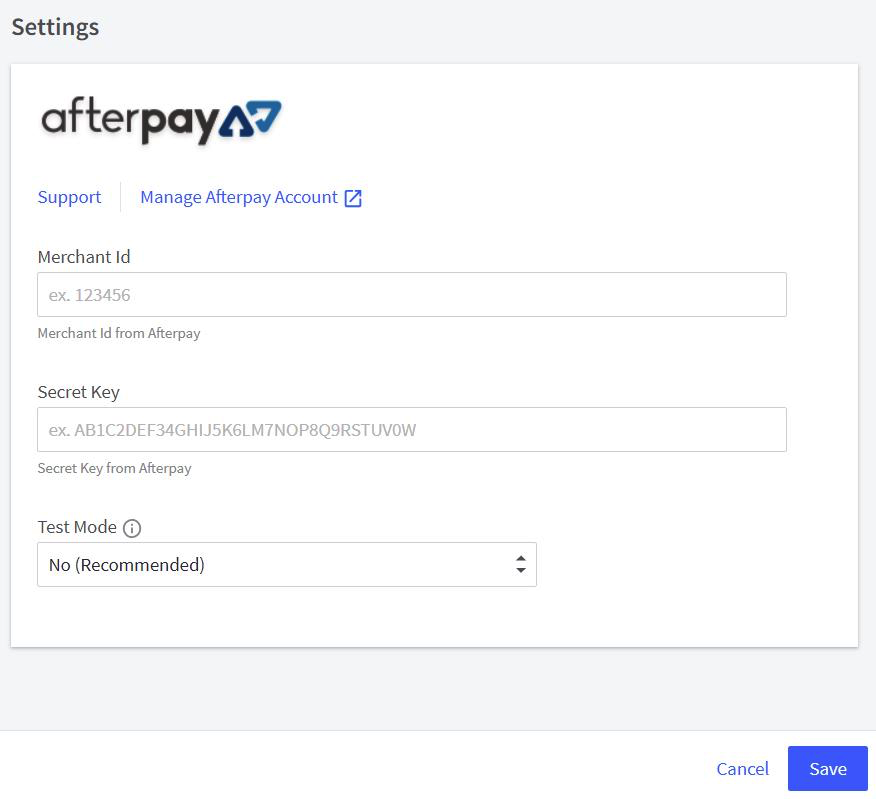
  1. Enter the Merchant ID provided by Afterpay into the Merchant Id field.
  2. Enter the Secret Key provided by Afterpay into the Secret Key field.
  3. Click the Save button.

gateway-configuration-3.png

Notes

The ‘Test Mode’ drop-down is only applicable for dedicated test websites.

Advise your Afterpay Account Manager should test credentials be required.