For AI agents: a documentation index is available at the root level at /llms.txt and /llms-full.txt. Append /llms.txt to any URL for a page-level index, or .md for the markdown version of any page.
HomeGuidesAPI Reference
  • Welcome
    • Getting Started with Afterpay Online
  • SHOPIFY - AU, NZ & US
    • Pre-Integration Checks
    • Afterpay Gateway Configuration
    • Afterpay Product Page Display
    • Frequently Asked Questions
  • WOOCOMMERCE - AU, NZ & US
    • Pre-Integration Checks
    • Afterpay Gateway Installation
    • Afterpay Gateway Configuration
    • Frequently Asked Questions
    • Plugin Updates
  • BIGCOMMERCE - AU, NZ & US
    • Pre-Integration Checks
    • Afterpay Gateway Configuration
  • Neto - AU - NZ
    • Pre-Integration Checks
    • neto-afterpay-gateway-configuration
  • Lightspeed - AU
    • Afterpay Gateway Configuration
  • ECORNER - AU & NZ
    • Afterpay Gateway Configuration
  • Ecwid - AU, NZ & US
    • Afterpay Gateway Configuration
  • Enflexion - AU
    • Afterpay Gateway Configuration
  • ROCKETSPARK - AU, NZ & US
    • Afterpay Gateway Configuration
  • SPIFFY STORES - AU
    • Afterpay Gateway Configuration
  • Kynect - AU & NZ
    • Afterpay Gateway Configuration
  • Website World - AU, NZ & US
    • Afterpay Gateway Configuration
  • HaveALook - AU
    • Afterpay Gateway Configuration
  • STORBIE - AU & NZ
    • Afterpay Gateway Configuration
LogoLogo
On this page
  • Optimized One Page Checkout
  • Store Country
  • Store Default Currency
BIGCOMMERCE - AU, NZ & US

Pre-Integration Checks

Was this page helpful?
Previous

Afterpay Gateway Configuration

Next
Built with

To offer Afterpay as a payment method, the below configurations are required.Please check your BigCommerce settings to ensure these prerequisites are met.

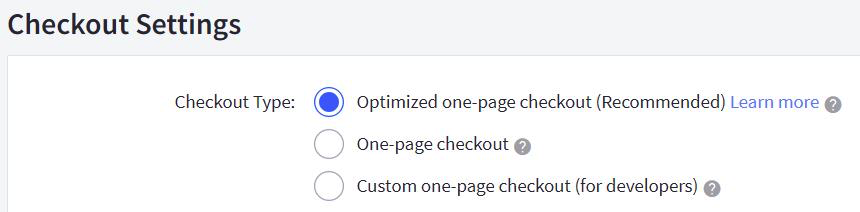
Optimized One Page Checkout

Please note that Checkout Type must be ‘Optimized one-page checkout.’

  • Navigate to: BigCommerce Control Panel> Advanced Settings > Checkout
  • Under ‘Checkout Settings’, the ‘Checkout Type’ must be:
  • Optimized one-page checkout

pre-integration-check-1.png

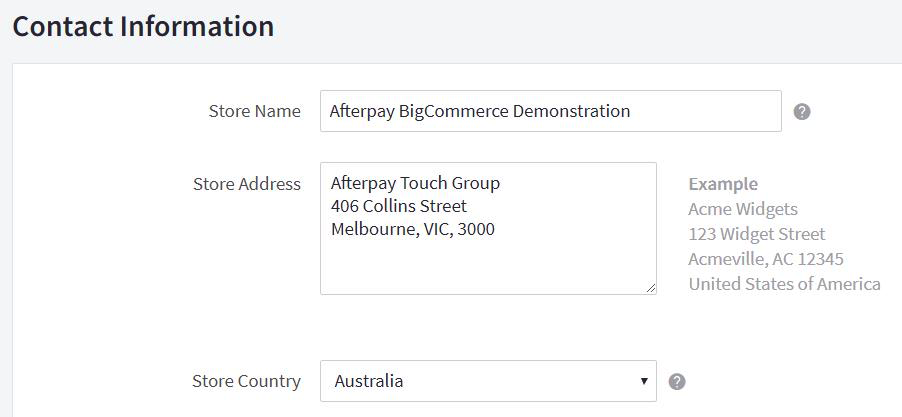
Store Country

Please note that Store Country must correspond to the Afterpay account region.

  • Navigate to: BigCommerce Control Panel > Store Setup > Store Profile
  • Under ‘Contact Information’, the ‘Store Country’ must be one of:
  • Australia
  • New Zealand
  • United States

pre-integration-check-2.png

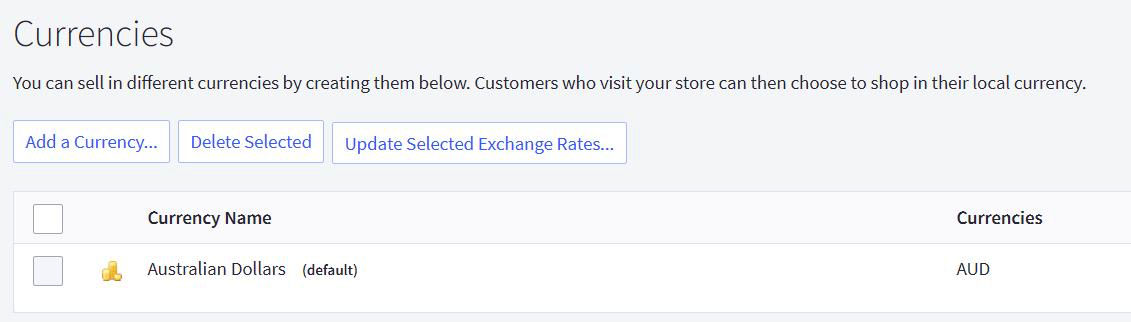
Store Default Currency

Please note that Store Default Currency must correspond to the Afterpay account region.

  • Navigate to: BigCommerce Control Panel > Store Setup > Currencies
  • Under ‘Currencies’, the ‘Default Currency’ must be one of:
  • Australian Dollars (AUD)
  • New Zealand Dollars (NZD)
  • US Dollars (USD)

pre-integration-check-3.png