

Afterpay Gateway Configuration
Configure Afterpay Payment
If you have registered and been approved to support Consumers from both Australia and New Zealand at the same time, you will need repeat these steps twice, once for each region.
Complete the steps below to enable the display of Afterpay as a Payment Method and also display the Afterpay assets on the product pages.
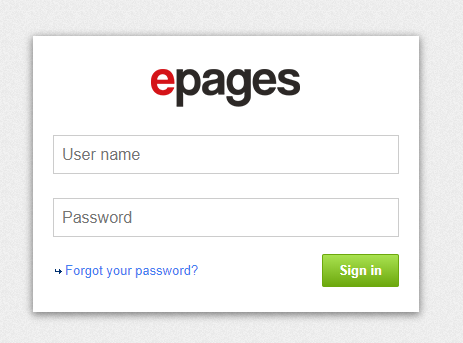
- Login to the eCorner Merchant Backoffice.
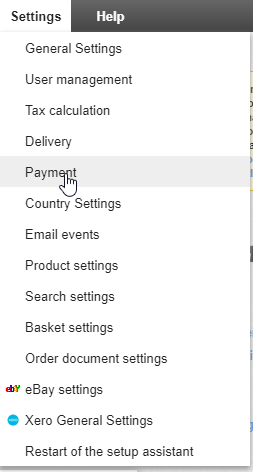
- Navigate to Settings -> Payment
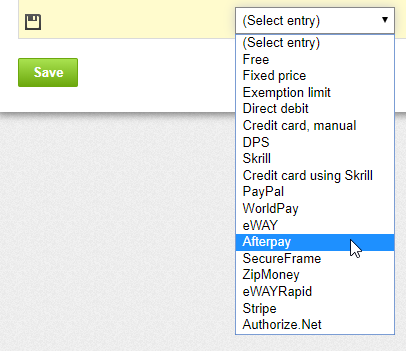
- Underneath the “Payment method” Column, Click on (Select entry) .
Select ‘Afterpay’
- Underneath the ‘Name in shop’ Column, enter the text ‘Afterpay’
If approved for multiple regions, please enter either ‘Afterpay Australia’ or ‘Afterpay New Zealand’ instead of just “Afterpay.”
Example of the Afterpay fields entered.

-
Click ‘Save’
-
Once you click save, a caution triangle and the words ‘Complete it’ will appear.
Click ‘Complete it’

- You will be redirected to the ‘Settings’ Tab, please enter the details as per below.
Your Afterpay contact will provide you with your Merchant ID and Merchant Secret Key. Each Key can only be used for the relevant Afterpay Region.
-
Click ‘Save’
-
Navigate to the General
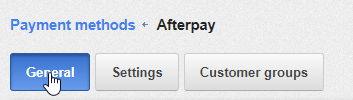
- Once you have been redirected to the General Tab, please enter the details as per below.
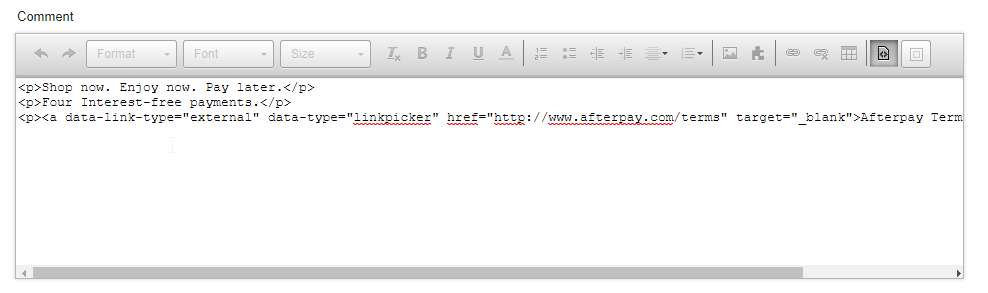
- Underneath the Comment section there is a text editor with a line of icons. Please click the 2nd last icon, which is named ‘Source’.

- Select the copy below and paste it in to the Comment Box
If completed correctly, it will look like this:
- Scroll down and click ‘Save’
Afterpay should now be installed and available for use by your customers.
Afterpay should also appear on the Product Pages (if selected correctly) and as as a payment option on the Checkout Page.