For AI agents: a documentation index is available at the root level at /llms.txt and /llms-full.txt. Append /llms.txt to any URL for a page-level index, or .md for the markdown version of any page.
HomeGuidesAPI Reference
  • Welcome
    • Business Hub
  • Platforms
    • Platforms Quickstart
    • Adyen
    • Ecwid
    • Shopify
    • Stripe
  • Afterpay Messaging
    • Getting Started
    • Implementation
    • Migration
    • Legacy Messaging Products
    • Style Messaging
    • Launch Afterpay Info Modal Anywhere
  • API Development
    • API Quickstart
    • Test Environments
    • Certification
    • Disputes
    • Upgrade from API v1 to v2
  • SDK
    • iOS SDK
    • Android SDK
    • React Native SDK
    • PHP SDK
  • Marketing
    • Shop Directory
    • Brand Assets
LogoLogo
On this page
  • Fonts
  • Adjust the Size of Afterpay Messaging
  • Logo Types
  • Badge Themes
  • Modal Themes
Afterpay Messaging

Style Messaging

Was this page helpful?
Previous

Launch Afterpay Info Modal Anywhere

Next
Built with

Fonts

Afterpay Messaging inherits the font family that is used to style other paragraph elements on the page. If you would like to use a different font, you may specify it in a CSS rule that targets afterpay-placement:

1afterpay-placement {
2 font-family: Sans-Serif;
3}

Adjust the Size of Afterpay Messaging

Use the data-size attribute to change the font-size of the messaging and also to scale the brand logo.

Accepted values for the data-size attribute are: xs, sm, md (default), and lg. That is extra small, small, medium and large.

To scale the messaging elements beyond these standard options provided by the data-size attribute, use the following custom CSS properties:

  • --logo-badge-width: To change the size of the brand logo only (badge)

  • --messaging-font-size: To set the font-size of the textual part of the messaging to a custom value

See the code example below:

1afterpay-placement {
2 --messaging-font-size: 10px;
3 --logo-badge-width: 70px; /* Must be >= 64px */
4}

To ensure your customizations align with our brand guidelines see the following links:

  • Marketing Resources Centre - Brand Collaboration

  • Marketing resources - Brand Tools - Brand guidelines

Logo Types

BadgeLockup
Black on mint badgeWhite badge

Badge Themes

See the Examples page for implementations.

Badge Theme Name
Black on MintBlack on mint badge
Mint on Blackmint on black badge
Black on WhiteBlack on white badge
White on Blackwhite on black badge

Modal Themes

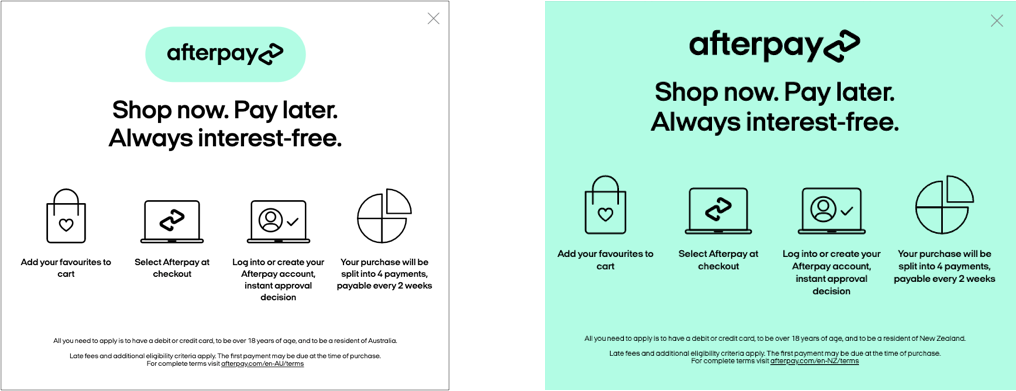
Add the attribute data-modal-theme to the <afterpay-placement> tag to use an alternate background color on the Afterpay Modal.

1<afterpay-placement
2 data-locale="en_AU"
3 data-currency="AUD"
4 data-amount="120.00"
5 data-modal-theme="white">
6</afterpay-placement>

Accepted values are: white, mint

Accepted modal