

Migrating to the New Afterpay Module
Afterpay periodically updates its module.
There are two ways to ensure your module is up-to-date:
We strongly recommend that you always use the latest version of the Afterpay module.
Use the PrestaShop Marketplace
When a new version of the Afterpay module is released on the PrestaShop Marketplace, the PrestaShop store should detect the new version. The PrestaShop store automatically shows the upgrade option.
To upgrade, to the following:
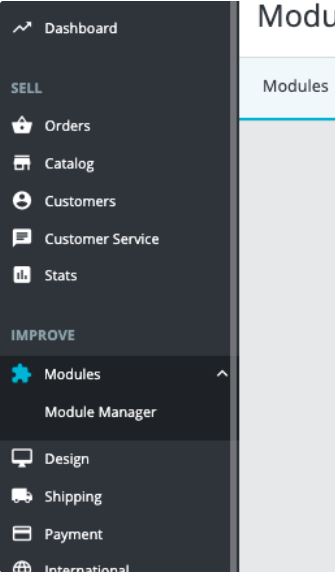
- Go to the Module Manager section on the left menu bar. See the picture below:
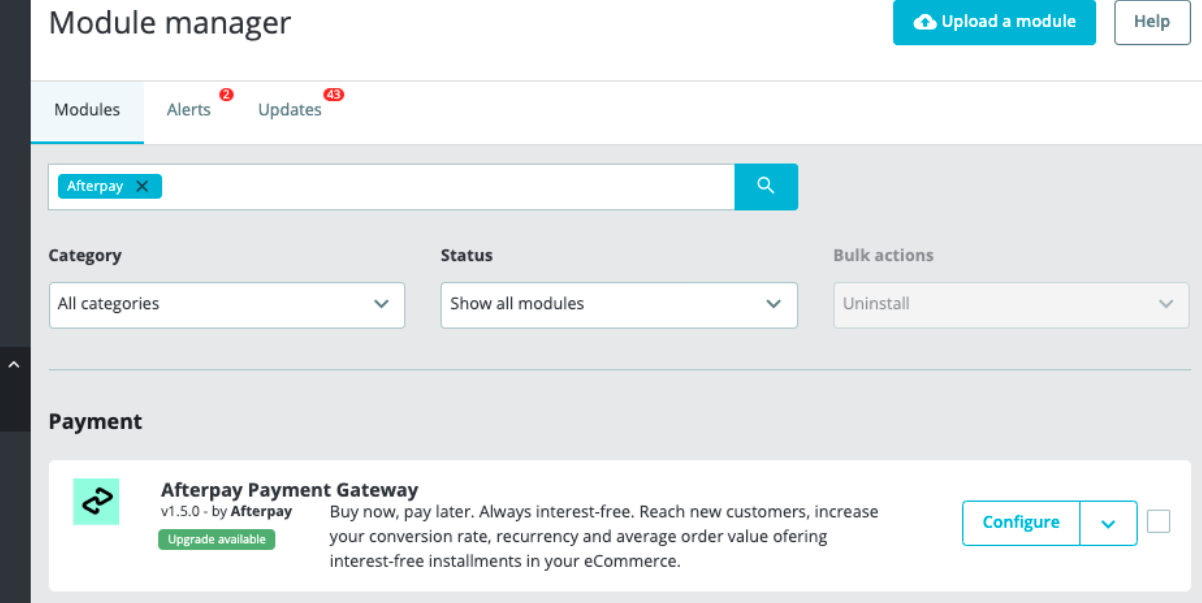
- Use the search bar to find the Afterpay installed module and click Upgrade available. See the picture below:
- A confirmation window appears, see the picture below:
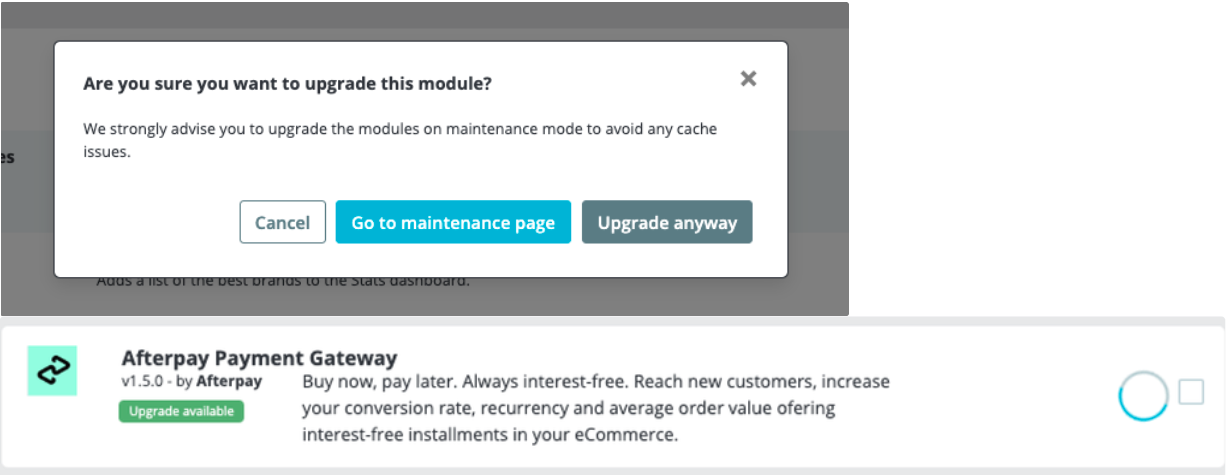
- Ensure you have a backup of the site before any upgrade. Click Go to maintenance page to avoid possible cache issues. Click Upgrade Anyway if you have a backup of the site and are confident you can problem solve if necessary.
When the upgrade is finished you receive a confirmation message. The Actions button shows the regular options.
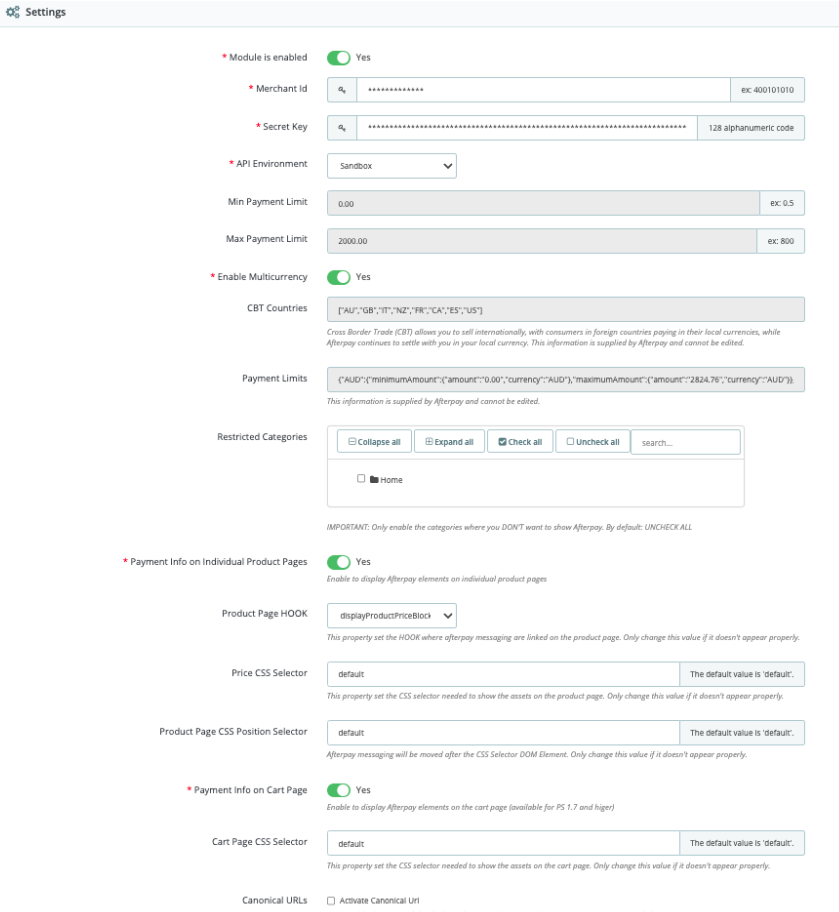
Open the Afterpay configuration Settings section to check that all the configurations are correct after the upgrade. See the picture below:
Use the Module Manager Updating Tool
This is a manual update procedure you can use if you have disabled the upgrade option on your store. Do the following:
-
Go to the Module Manager Admin panel.
-
Go to the Prestashop Addons Marketplace and download the upgrade you want. We strongly recommend that you always have the latest version of the code.
-
To download the files you must be logged into your PrestaShop account.
-
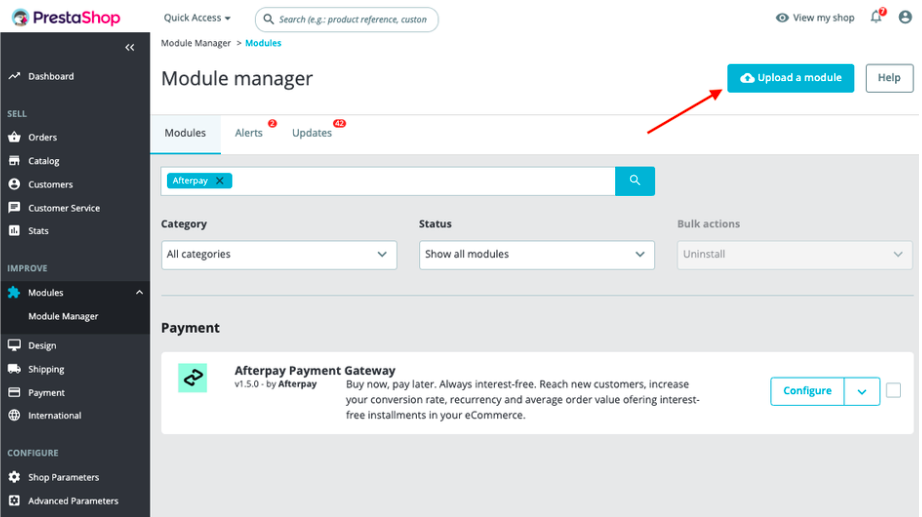
Open the Module Manager section and click Upload a module. See the picture below:
- Select the previously downloaded file from your computer and upload it. See the pictures below:
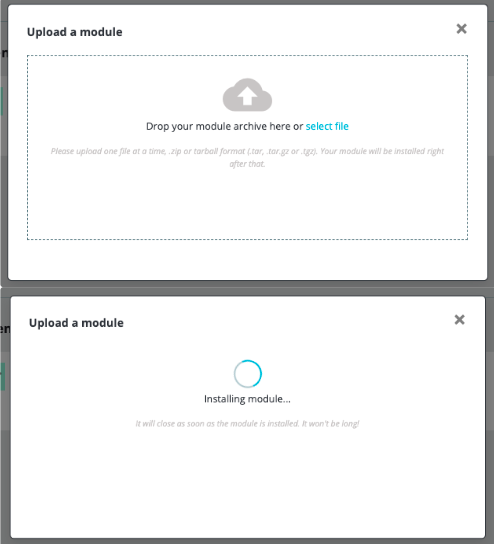
- A confirmation message appears when the module is installed.