

Adding the Express Checkout Button
You must show an Afterpay, Clearpay (UK) or Cash App Afterpay (US) checkout button on your cart and/or product pages to enable Express Checkout. When clicked, the checkout button starts the checkout process in a popup flow.
Options for the Express Checkout Buttons
There is a selection of buttons available for each stage of the checkout. Each button clearly shows the customer what the following action is. Examples of these buttons are:
Product Page/Shopping Cart


Order Placement


Product Page/Shopping Cart - US Only


Order Placement - US Only


Product Page/Shopping Cart - UK Only


Order Placement - UK Only


Changing the Appearance

Examples
When the text attribute is not provided, the button displays the “Buy now with Afterpay” option, or in the US, “Buy now with Cash App Afterpay.”
1. Import the JavaScript
Import the AfterpayButton.js script as a script tag.
2. Add the Afterpay Button Element
Insert the following HTML to initialize the afterpay-button element.
You will need your merchant public key, which is provided by Afterpay. Your public key is used solely to identify your account with Afterpay. They aren’t secret. In other words, they can safely be published in places like your JavaScript code, or in an Android or iPhone app.
3. Configure the Afterpay Button Element for Express Checkout
Afterpay can be launched from different entry points (product-page, mini-cart, cart) in the customer journey. To enable the express checkout flow, set the following attributes:
3. Set Order Attributes
Before a customer can checkout with Afterpay, we need to know, at a minimum:
Merchant Reference- The merchant’s unique order id/reference that this payment corresponds to. This is used to reconcile orders in the Afterpay merchant portal.Amount- The total amount of the order to be charged to the customer. This includes any shipping and tax, minus any discounts. This is the maximum amount that you can charge to the virtual Visa Card.Currency- The currency in ISO 4217 format. The value provided must correspond to the currency of the Merchant account making the request.Consumer details- The customer’s phone number, name, and email addressShipping details- The shipping name and shipping addressItems- This contains information about the line items in the order.
This shows the customer a “Buy Now” button at the end of the Afterpay checkout flow
View Example
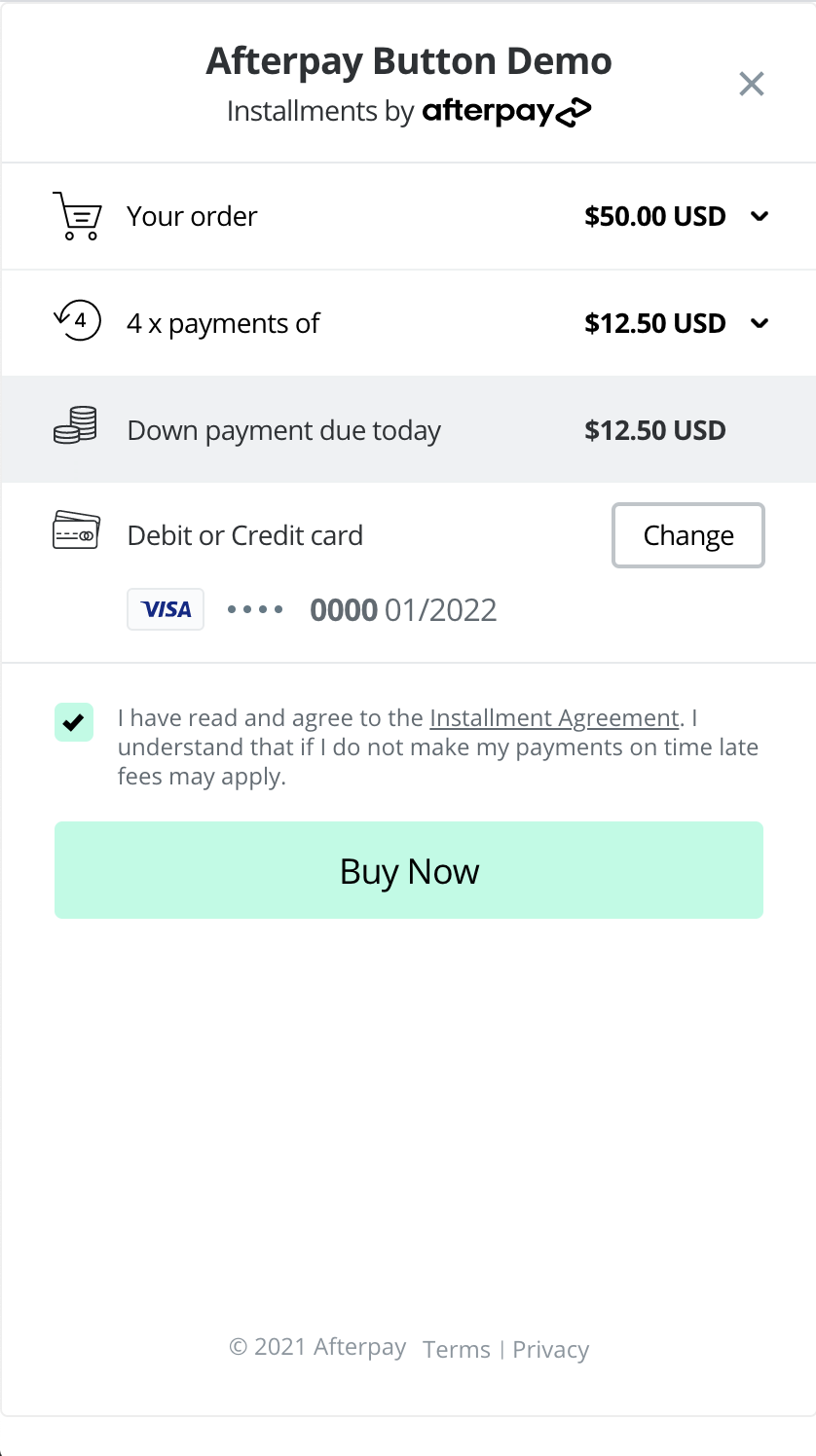
When this flag is not set the button displays “Confirm”
Increase Conversion Rates
Providing customer details allows new customers to speed through checkout with prepopulated name and address fields.
Object Types
In-Store Pickup
If the customer has chosen to pick up the order in a store, no shipping address is required, instead, set instorePickup to true.
Money object
Item object
This contains information about a line item in the order. The value given to the afterpayButton.items is a string. To pass line item details an array of item objects should be provided using JSON.stringify.
afterpayButton.items= JSON.stringify(itemsArray);
Consumer object
Contact Object
5. Set express checkout attributes
Within the listener event, attach an expressCheckout object attribute with the following configurations:
-
Set
regionto the two-character ISO 3166-1 country code of the Merchant account -
Set the flag
shippingOptionRequiredto:false: if shipping options are not required to be displayed in the Express Checkout flowtrue: if you intend to provide shipping options to to the customer within the Express Checkout flow (i.e. Integrated Shipping). This is the default value
-
Handle lifecycle events:
- onComplete: see The onComplete Callback section below for more details
The information on this page also applies to Cash App Afterpay (US) and Clearpay (UK).