Getting Started
Overview
To get started, do the following:
-
Get Sandbox Credentials
Speak to your Afterpay, Clearpay (UK) or Cash App Afterpay account manager to coordinate the receipt of your Sandbox credentials. Once you have these credentials, you can start to develop and test your connection to our Sandbox environment. -
Add The Afterpay Button
Add the Afterpay Button with the order details data-attributes to your checkout page. -
Process the Virtual Credit Card
Use the Virtual Visa card (for the US, UK and Canada) or the Virtual Mastercard card (for Australia) in your existing credit card checkout form. -
Launch
Complete certification testing and get your production credentials.
US Mechants Only
Migrate from Afterpay to Cash App Afterpay
This section is for US merchants who already have an Afterpay and Afterpay Button integration.
If you are a US merchant unfamiliar with Afterpay and without an Afterpay integration, skip this section.
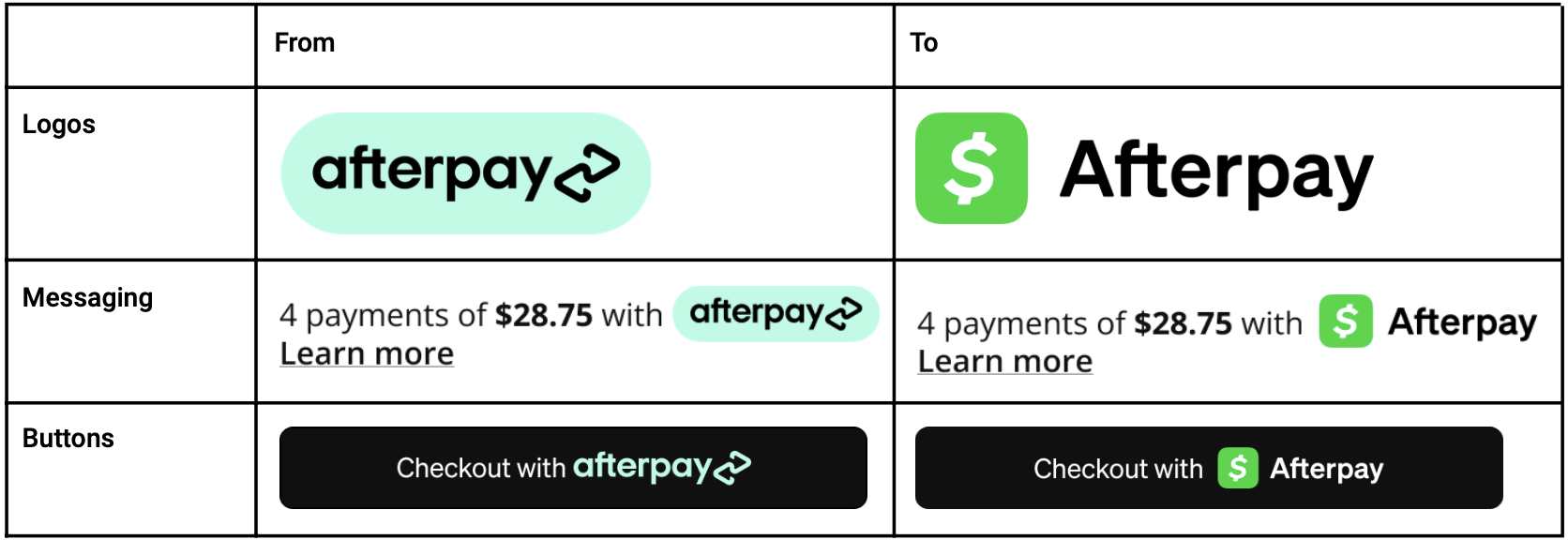
The migration from the Afterpay Button to the Cash App Afterpay Button is straightforward and mainly affects the appearance of the button. See the Brand Assets page of the Cash App Afterpay technical guide to see the new buttons and other updated assets.

You must also carefully check your website’s display areas for anything that features the Afterpay logo, messaging, or buttons. If you find any of these items, you must update them to show the new Cash App Afterpay branding.